Showing posts with label ODI. Show all posts

Friday, September 30, 2022

Insert Unspecified Record in Dimension - ODI KM Customization

A typical requirement in any data warehousing project is to populate an “unspecified” row for each dimension. This will enable the capability of always making inner joins between the facts and dimensions and thus improve performance in all our OLAP queries.

Step 1: Duplicate IKM Oracle Incremental Update (MERGE)

Step 2: Rename to Custom IKM Oracle Incremental Update (MERGE)

Step 3: Navigate Options and create new Option UNSPECIFIED_RECORD and enter other parameters as shown below.


Step 4: Navigate to Tasks to add new Task and below Target Command 


declare

v_count number:=0;

begin

Execute immediate 'ALTER SESSION SET NLS_DATE_FORMAT = ''YYYYMMDD''';

Execute immediate 'ALTER SESSION SET NLS_TIMESTAMP_FORMAT = ''YYYYMMDD''';

if ('<%=odiRef.getTable("L", "TARG_NAME", "A")%>' like '%_DIM%')  and '<%=odiRef.getOption("UNSPECIFIED_RECORD")%>'='1'

THEN

SELECT COUNT(*) INTO V_COUNT FROM <%=odiRef.getTable("L", "TARG_NAME", "A")%>;

if V_COUNT =0 THEN

insert into <%=odiRef.getTable("L", "TARG_NAME", "A")%> ( <%=odiRef.getColList("", "[COL_NAME]", ",\n\t", "", "")%>)

select

<%=odiRef.getColList("\n", "\tCASE WHEN '[DEST_DT]' LIKE 'VARCHAR2%' AND TO_NUMBER ('[LONGC]')> TO_NUMBER('11') THEN 'Unspecified'

WHEN '[DEST_DT]' LIKE 'VARCHAR2%' THEN '0'

WHEN '[DEST_DT]' LIKE 'DATE%' THEN '19000101'

WHEN '[DEST_DT]' LIKE 'TIMESTAMP%' THEN '19000101'

WHEN '[DEST_DT]' LIKE 'NUMBER%' THEN '0'

ELSE NULL END [COL_NAME]",",\n","\n","")%>

from dual;

commit;

END IF;

END IF;

END;


Step 5:  Save and close the window , This step should be placed before Merge Rows step.


Step 6: Now we are good to use this Custom IKM in any dimension (table name with suffix as _DIM) as per code . Make sure we select Insert Unspecified Record option as True in KM option.


Monday, August 21, 2017

ORA-20000: Error creating indexes in parallel, see W_ETL_EVENT_LOG for details

I see an error ODI when running OBIA etl loads in ODI.

ODI-1228: Task Custom_SIL_TestFact.WC_TEST_F (Integration) fails on the target ORACLE connection BIAPPS_DW.
Caused By: java.sql.SQLException: ORA-20000: Error creating indexes in parallel, see W_ETL_EVENT_LOG for details
ORA-06512: at line 119

Looks like duplicates in WC_TEST_F table. But real problem is incorrect flex-fields setting in the WC_TEST_F data store.

Issue:
There is an index created WC_TEST_F_U1 as alternate key and "OBI Bitmap Index" value set as Y.

Hence it is issuing below query for creating index during load.

CREATE UNIQUE BITMAP INDEX DEV_DW.WC_TEST_F_U1 ON DEV_DW.WC_TEST_F (DATASOURCE_NUM_ID, INTEGRATION_ID) PARALLEL NOLOGGING

The syntax is incorrect because a BITMAP index cannot be unique

Resolution:

1.Update W_ETL_ALL_INDEXES table  and set the PRE_PARAMETERS column from ‘UNIQUE BITMAP ‘ to ‘UNIQUE ‘ for this index WC_TEST_F_U1.

update W_ETL_ALL_INDEXES set pre_parameters='UNIQUE ' where index_name='WC_TEST_F_U1';

2.Modify WC_TEST_F data store flex-fileds to mark the ‘ODI Bitmap Index’ Parameter as ‘N’.


Restart load.

Friday, July 28, 2017

email Notifications in ODI

In order to send email notifications on load failure/success, follow below mentioned steps.

For Failure Notification

1.Create Global Variables.

Variable 1: EMAIL_SUB

SELECT 'ATTENTION REQUIRED...Load Failed at Session : '|| (SELECT sess_name FROM (SELECT sess_name FROM snp_session WHERE sess_status = 'E' ORDER BY sess_beg DESC) WHERE ROWNUM < 2)||'('|| (SELECT sess_no FROM (SELECT sess_no FROM snp_session WHERE sess_status = 'E' ORDER BY sess_beg DESC) WHERE ROWNUM < 2)|| ')'FROM DUAL

Variable 2: EMAIL_BODY

SELECT DBMS_LOB.SUBSTR(error_message,1000,1)
FROM (SELECT error_message FROM snp_session WHERE sess_status = 'E' ORDER BY sess_beg DESC)
WHERE ROWNUM < 2

2. Create a package with above created variables along with “OdiSendMail” utility

add above created variables and then OdiSendMail utility to the package as shown in below order

EMAIL_SUB à EMAIL_BODY à OdiSendMail

3.Provide SMTP server details in “OdiSendMail”
4.Generate scenario for the above package
5.Use this package scenario in Generated load plan under Exceptions so that it will be called whenever exception occurs.

For Success Notification

Add an "OdiSendMail" utility at the end of loadplan (i.e last scenario in loadplan)
Provide necessary details in the utility options.
Email Subject: Load Completed
Email Body: Load Executed Successfully

Note: You can also create separate variables ( for SUB and BODY) to add any dynamic information like load execution time,Environment name etc.

This step will be executed as part of last session in the loadplan.

Tuesday, June 13, 2017

Calling ODI Load Plan from another Load Plan

There is a requirement where  load plan execution has to wait till the first load plan execution completion.Basically second load plan has to check previous load plan an if that execution completed then it has to be triggered.

We can accomplish this by calling second load plan from first load plan end of the steps.So that as a last step second load plan will be triggered and first load plan will be completed before it get kicked off.

Let see how it can be doable.

1.Create a scenario to call the Second load plan.
2.Add above created scenario in the first load plan (as a last step)

We have to use “OdiStartLoadPlan” utility to call the load plan inside the ODI package.

1.Create a package

Sample example


Add "OdiStartLoadPlan" utility into the package and provide all the necessary details
Load Plan Name : Which load plan you supposed to trigger (Here we are calling load plan named "SecondLoad")
Context Code: Select  appropriate context from drop down
Agent Code: Select appropriate agent from drop down
Physical Agent: Select appropriate Physical agent from drop down
ODI User: Provide username with whom it should be kicked off
ODI Password: Provide password for above user
Loglevel: Set log level to track the session details


And Generate a Scenario for the above package.

2.Add the above scenario to the first load plan as a last step .


3.Now execute "FirstLoad" load plan and you can notice "SecondLoad" LP triggered as soon as First LP gets completed .


Wednesday, June 7, 2017

User defined SQL functions in ODI

As most of you know there are some SQL functions(SUM,COUNT,AVG etc) will be in ODI repository to transform/compute source data. If we want to add new functions to this list ,you can follow steps.

Note: We will create LISTAGG function which is a list(rows) aggregate function and orders data within each group specified in the ORDER BY clause and then concatenates the values of the measure column.

 Syntax:

LISTAGG (measure_column [, 'delimiter'])
  WITHIN GROUP (order_by_clause) [OVER (query_partition_clause)]


Let see how it can be created in ODI

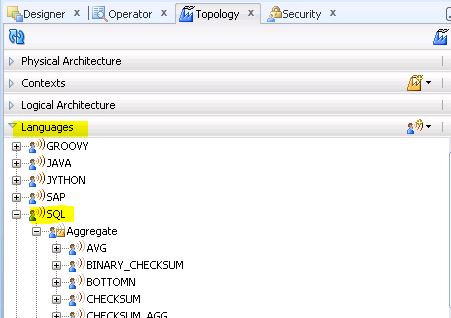
1.Navigate to Topology-->Languages-->SQL-->Aggregate


2.Create New function and name it as LISTAGG and enter other details as following


Enter expression as

LISTAGG($(expr)n1, $(orderby)n2)

and make sure "Group Function" checkbox checked .Then only it will be considered as aggregate function and generates proper group by statement.

3. Navigate to Implementation and click + symbol to add.
Here provide exact syntax  and choose the appropriate technology.

LISTAGG($(expr)n1,',') WITHIN GROUP(ORDER BY $(orderby)n2)


4. Save and close
5.Check if that aggregate function is appearing in column expression with orange color (If this function recognized then it will be visible in orange color)


Now ,you can reuse this function anywhere in odi by just modifying parameters.


Similarly XMLAGG can be implemented in same fashion.

Expression under definition

XMLAGG($(expr)n1, $(orderby)n2)


and in Implementation

XMLAGG(XMLELEMENT("E",$(expr)n1,',').EXTRACT('//text()') ORDER BY $(orderby)n2)

Example to truncate morethan 3900 characters in CLOB type column

DBMS_LOB.SUBSTR(
         rtrim(xmlagg(
           xmlelement( e,WO_TSK_DESCRIPTION || ' ' )  ORDER BY GEN_ARG
         ).extract( '//text()' ).getClobVal(),
         ' '
       ) , 3900,1) WO_TASK_NOTE_DESC

Wednesday, May 17, 2017

ODI-10163: This OPSS user biadmin has different GUID than the one found in Oracle Data Integrator repository

After cloning ODI , We got this issue while trying to login OBIA ODI repository.

ODI-10163: This OPSS user biadmin has different GUID than the one found in Oracle Data Integrator repository
oracle.odi.core.security.BadCredentialsException: ODI-10163: This OPSS user biadmin has different GUID than the one found in Oracle Data Integrator repository.
at oracle.odi.core.security.SecurityManager.createAuthentication(SecurityManager.java:511)
at oracle.odi.core.security.SecurityManager.createAuthentication(SecurityManager.java:252)
at oracle.odi.ui.docking.panes.OdiCnxFactory$1.run(OdiCnxFactory.java:208)
at oracle.ide.dialogs.ProgressBar.run(ProgressBar.java:655)
at java.lang.Thread.run(Thread.java:662)
WARNING JPS-00167 Invalid xml content was found. SchemaLocation: schemaLocation value = 'http://xmlns.oracle.com/oracleas/schema/11/jps-config-11_1.xsd' must have even number of URI's. Location: line 2 column 272.
ERROR odi.core.security.SecurityManager.createAuthenthication(subject) detected OPSS user:biadmin has different guid ODI repos. The guid of the opss user is:A6EA4DE0AB5211E6BFDE3BA100F88679, the guid in repos is:926E89702AD011E5AF4471E40A0748AE


Cause: After cloning instance weblogic ldap users GUID were changed but those were not updated in ODI repository.

Resolution: Update GUID in SNP_USER table for OPSS user and then regenerate cwallet.sso and jps-config-jse.xml and place them into your client machine

Update GUID in SNP_USER table

UPDATE SNP_USER SET GUID_EXTERNAL='A6EA4DE0AB5211E6BFDE3BA100F88679' WHERE WUSER_NAME='biadmin'

Regenerate/Update ODI security files

Connect middleware server and execute below command in putty

<Middleware>/Oracle_BI1/common/bin/wlst.sh <Middleware>/Oracle_BI1/bifoundation/install/createJPSArtifactsODI.py embedded --ADMIN_USER_NAME weblogic --DOMAIN_HOSTNAME <mention_host_name> --DOMAIN_PORT 7001 --DOMAIN_HOME_PATH <Middleware>/user_projects/domains/bifoundation_domain

On successful execution ,you will see regenerated/updated cwallet and jps-config-jse file at below Middleware server location

<Middleware>/user_projects/domains/bifoundation_domain/odi-client-config/embedded

copy those cwallet.sso and jps-config-jse.xml to your client odi bin location. Usually it is

C:\oracle\product\11.1.1\Oracle_ODI_1\oracledi\client\odi\bin


Restart odi_server1 from the weblogic console to make the changes effective.

Thursday, February 23, 2017

ODI Coding Standards for OBIA 11.1.1.x

Below are the areas in Oracle Data Integrator where developers need to strictly follow the Oracle BI Apps standards for better code readability and troubleshooting.

1.KnowledgeModules
2.Filters
3.Joins
4.Lookups
5.Column Mapping Properties
6.Interface Standards
7.Translation Mapping Standards
8.Domain Staging Standards
9.All BIAPPS Tables Standards
10.Standards to Short cut the Task , LKP Temp Interface and Datastores

1.     Knowledge Modules Standards

ODI Interface -Flow -Source Set - LKM :

For MAIN Interfaces, choose the appropriate LKM for a given Source and Target combination from the list below:        

Source                             
Target                                
LKM
File                          
Data Warehouse           
LKM BIAPPS File to SQL
EBS,SBL,JDE,PSFT     
Data Warehouse           
LKM BIAPPS SQL to Oracle
Fusion 
Data Warehouse           
LKM BIAPPS OBIEE to Oracle
BIA Config Manager   
Data Warehouse           
LKM BIAPPS SQL to Oracle
Data Warehouse           
Data Warehouse           
No LKM (NULL)
SBL 
SBL
No LKM (NULL)
Datawarehouse
BIA Config Manager      
LKM BIAPPS SQL to Oracle


For TEMPORARY interfaces, the LKM should be NULL since temporary target will be created on the same source instance.

ODI Interface -Flow -Target Set - IKM :

For Temp Interface:
Always IKM BIAPPS SQL Control Append
For MAIN Interface:
All SDEs except Persistent Staging and Class Dimension Staging - IKM BIAPPS SQL Control Append
Persistent Staging and Class Dimension Staging - IKM BIAPPS Oracle Incremental Update


2.     Filters Standards


Try to use filters in Temp interfaces itself rather than using filters on temp interface columns in any other interface
Do not combine different filter logic in single filter. Have separate filters for each logic
SDE  Mapping Filter  - Standards:

For Temp Interface:

Ensure you use an ODI Function or UDF rather than a DB specific function in filter expression.
If Filter includes a subquery, always enclose each table name in the sub-query in a QUALIFY() function.

Most instance-specific SDEs include the UDF RUN_INCREMENTAL_FULL() in a filter to identify changed records.

For Main Interface:

Avoid Filters in Main interfaces. If you need to filter OLTP data, try to push the filter into the SQ temp interface. Filters should only be on Lookup results.

SDE Mapping Filter Execute On - Main Interface:

As filters should only be on Lookup results and Lookups should only be to data on a system different from the OLTP (ie flat file or DW table), Execute should be 'Staging' .

Note :This is an exception to the Interface standard of always using 'Source'.

3.     Joins Standards


Joins standards:

Joins should generally only be used in temp interfaces. Try to avoid joins in the Main interface if possible. If you need to join to table in same source system, push to a SQ temp interface. If you need to join to a flat file or table on another system, try to use a lookup in the main interface.

Join Expression Standards:

Avoid using functions or UDFs in the Join expressions.
Join expressions should not have subqueries - these subqueries should be moved to the Filter expression. By implementing in the Join clause, the subquery will be included in the ON clause of the Join. ANSI standards does not allow subqueries in the ON clause of a JOIN. By moving the subquery to a Filter expression, the subquery will be implemented in the WHERE clause.

Join Type Standards:

Use Inner join with join expression as appropriate. If you need to configure an outer join, use Left outer join with join expression, do not use right outer joins. Use the 'left outer join' property, do not use Oracle specific '+' syntax for outer joins in the join expression.
Do not use Cross or Natural join
(Exception - Cross Joins are allowed in the Fusion adaptor as VO's often have View Links which are implemented as cross joins in ODI).

Avoid using functions or UDFs in the Join expression.

4 .    Lookup Standards


Avoid lookups in the Temp interface. If you need to join to data from the same system in a temp interface, use a join to that table. If you need to join data from another system, do a lookup in the main interface.
Lookup Alias Standard:

LKP_<Name of Lookup Table>

If you have multiple lookups to the same table, include usage type as a suffix to the lookup alias. For example, you have multiple lookups to W_USER_D to retrieve a Created by Widand a Changed by Wid. We could name each alias as follows:
LKP_W_USER_D_CREATED
LKP_W_USER_D_CHANGED
Lookup Execute On Standard:

If lookup table is on same system as source table, use 'Source'. Otherwise use 'Staging'.
For example, you would use 'Source' in a SIL when extracting from a Staging table and need to lookup a DW table. You would use 'Staging' when looking up a Flat File or in an SDE when extracting from an OLTP table and you need to lookup data in a DW table.
Lookup Type Standard:

Select 'SQL left-outer join in the from clause.' Only in some very special cases, for performance reasons, should you use 'SQL expression in the select clause'.


5.     Column Mapping Properties


Insert/Update/Active properties are always needs to be checked.

Note: Update option unchecked for ROW_WID,W_INSERT_DT columns.
SDE mapping column properties -UK check box:

Checked for INTEGRATION_ID and DATASOURCE_NUM_ID (and SRC_EFF_FROM_DT if column exists in target) only.
SDE mapping column properties -CN check box:

Checked for INTEGRATION_ID and DATASOURCE_NUM_ID (and SRC_EFF_FROM_DT if column exists in target) only.
SDE mapping column properties -Execute On:

Interface standards:
If column comes from SQ temp interface - Source
If column comes from LKP temp interface - Staging
Datasource Num Id when populated with variable - Staging
Hard coded columns and columns other than datasource_num_id that are populated using variables - Target

6.     Interface Standards


SDE mapping interface name standards:

For Main Interface:

<Package Name>.<Main Interface Target Name>
Name must be unique (within the Adaptor folder)
Ex.
SDE_ORA_EAMAssetDimension.W_EAM_ASSET_DS
SDE_ORA_EAMAssetFact.W_EAM_ASSET_FS

For Temp Interface:

<Package Name>.<Main Interface Target Name>_SQ_<Base Table Name> OR
<Package Name>.<Main Interface Target Name>_SQ_<Function Name>

Name must be unique (within the Adaptor folder), include SDE and SQ in the name.
Ex.
SDE_ORA_EAMAssetDimension.W_EAM_ASSET_DS_SQ_CSI_ITEM_INSTANCES
SDE_ORA_UserDimension.W_USER_DS_SQ_USERS_EXTRACT


7.     Translation Mapping Standards


ODI Dimension Translation Staging Mapping Columns CN - Main Interface:

Checked for INTEGRATION_ID, DATASOURCE_NUM_ID and LANGUAGE_CODE only

ODI Dimension Translation Staging Mapping Columns UK - Main Interface:

Checked for INTEGRATION_ID,DATASOURCE_NUM_ID and LANGUAGE_CODE only

ODI SDE Source to Warehouse Translation Dimension Staging Filter Expression - Temp Interface:

When extracting from a table that stores translation Records, include a filter on the translation table's 'Language' column that matches the LANGUAGE_LIST variable. This variable is a comma-delimited List variable so quotes are not required (quotes are already included that separate the list items). This variable lists the languages that have been deployed in the data warehouse. Config Manager manages this variable and automatically creates this variable using the language character set used by each OLTP.
<Language Column> IN (#LANGUAGE_LIST)
When the OLTP table does not store translations, there is no need to include this filter.

ODI SDE Source to Warehouse Translation Dimension Staging System Column LANGUAGE_CODE - Main Interface:

UK and CN always checked, and
Mapping Expression:
DOMAIN_MEMBER_MAP(
'LANGUAGE',
LANGUAGE_CODE,
#DATASOURCE_NUM_ID,
'W_LANGUAGE'
)

Execute on Staging.
 
ODI SDE Source to Warehouse Translation Dimension Staging System Column LANGUAGE_CODE - Temp Interface:

Only required when populating a translation enabled DW table.
When extracting from a Translation table, map to LANGUAGE_CODE column.
If extracting from a table that does not support translations, populate with variable '#LANGUAGE_BASE' - this will force the record we do have available to be used as the source for generating pseudo-translated records for all languages installed in the data warehouse.
Do not hardcode values for LANGUAGE_CODE (ie no 'US' or 'ENU')
Execute on Source.

ODI SDE Source to Warehouse Translation Dimension Staging System Column SRC_LANGUAGE_CODE - Main Interface:

Mapping Expression:
DOMAIN_MEMBER_MAP(
'LANGUAGE',
COALESCE(SRC_LANGUAGE_CODE,LANGUAGE_CODE),
#DATASOURCE_NUM_ID,
'W_LANGUAGE'
)

If Source Language Code column not mapped in Temp Interface, the following is acceptable:

DOMAIN_MEMBER_MAP(
'LANGUAGE',
LANGUAGE_CODE,
#DATASOURCE_NUM_ID,
'W_LANGUAGE'
)

Execute On: Staging

ODI SDE Source to Warehouse Translation Dimension Staging System Column SRC_LANGUAGE_CODE - Temp Interface:

For those OLTPs that support pseudo-translation and provide a Source Language column (ie EBS and Fusion but not PSFT), map to this column. If there is no such column, leave blank.


8.     Domain Staging Standards


ODI SDE Source to Warehouse Domain Staging Interface Flow Target IKM - Main Interface:

The Domain Staging table W_DOMAIN_MEMBER_GS is a type of class staging table so should use the same IKM as all class SDEs - IKM BIAPPS Oracle Incremental Update.


ODI SDE Source to Warehouse Domain Staging System Column DOMAIN_CODE - Main Interface:

Mapping Expression = '#DOMAIN_CODE', Execute on Target
Domain Code is a single alphanumeric variable so should be enclosed in single quotes. All Main interface variables except Data Source Num Id should be executed in Target so #DOMAIN_CODE is executed on Target.

ODI SDE Source to Warehouse Domain Staging System Column DOMAIN_MEMBER_CODE - Main Interface:

Use SUBSTRING to get the first 80 characters:
SUBSTR(DOMAIN_MEMBER_CODE,1,80)
If source column is a number data type, convert to string as follows:
SUBSTR(TO_CHAR(DOMAIN_MEMBER_CODE),1,80)
Execute on Source

ODI SDE Source to Warehouse Domain Staging System Column DOMAIN_MEMBER_CODE - Temp Interface:

Map to appropriate source Code column. Execute on 'Staging' or 'Source'.

ODI SDE Source to Warehouse Domain Staging System Column DOMAIN_MEMBER_DEFN_TYPE_CODE - Main Interface :

Mapping Expression = 'E'. Execute on Target

ODI SDE Source to Warehouse Domain Staging System Column DOMAIN_MEMBER_REF_CODE - Main Interface:

Mapping Expression = '__NOT_APPLICABLE__'. Execute on Target


ODI SDE Source to Warehouse Domain Staging System Column DOMAIN_TYPE_CODE - Main Interface:

Mapping Expression = 'S', Execute on Target


ODI SDE Source to Warehouse Domain Staging System Column INTEGRATION_ID - Main Interface:

Mapping Expression:
'#DOMAIN_CODE' || '~' || SUBSTR(DOMAIN_MEMBER_CODE,1,80)

If Domain Member Code maps to a numeric column in the source then
'#DOMAIN_CODE' || '~' || SUBSTR(TO_CHAR(DOMAIN_MEMBER_CODE),1,80)

Execute on Target


ODI SDE Source to Warehouse Domain Staging Target Datastore - Main Interface :

Target datastore is always W_DOMAIN_MEMBER_GS.
ODI Domain Staging Mapping Columns - Temp Interface :

Temp Interface should have the following columns:
•       DOMAIN_MEMBER_CODE - Dataype should match source column's datatype (usually either Varchar or Number)
•       DOMAIN_MEMBER_NAME - VARCHAR2(255)
•       DOMAIN_MEMBER_DESCR - VARCHAR2(2000)
•       CREATED_BY_ID - VARCHAR2(80)
•       CHANGED_BY_ID - VARCHAR2(80)
•       CREATED_ON_DT - DATE
•       CHANGED_ON_DT - DATE
•       DELETE_FLG - VARCHAR2(1)
•       LANGUAGE_CODE - VARCHAR2(80)

•       SRC_LANGUAGE_CODE - VARCHAR2(80)


9.     All BIApps tables standards


Category
Standards Description
Table
Resource Name must be unique
Table
Table name must be all UPPER CASE
Table
Flat File sources should be all lower case
Column
Column Name length cannot be over 30 characters
Column
Column Names cannot be duplicated for a given table
Column
Column name must be all UPPER CASE
Sequence
Tables with ROW_WID must have a sequence
Sequence
Different sequences cannot reuse the same Native Sequence Name
Sequence
Native Sequence Name cannot be over 30 characters
Sequence
Sequence name should match table name with _SEQ or S1W suffix
Sequence
Native Sequence name should match Sequence name unless it would exceed 30 characters
Sequence
Sequence type must be 'Native'
Index
Index cannot be defined as Unique and Bitmap
Index
Index must have 'Active' and 'Defined in Database' properties checked
Index
ROW_WID must have a unique index
Index
DATASOURCE_NUM_ID + INTEGRATION_ID must have a unique index
Index
Except for Fact %_WID columns, bitmap indexes should not be used unless approved by the PSR team
Index
non-Teradata specific indexes should be enabled for Oracle


Standards that apply to BIApps table types:

Category
Standards Description
Table
Fact table name length cannot be over 26 characters
Table
Non-Fact table name length cannot be over 30 characters
Index
W_%_TL Tables must have a unique index on INTEGRATION_ID+DATASOURCE_NUM_ID+LANGUAGE_CODE
Index
W_%_T1_D Tables must have a unique index on SCD1_WID
Index
Fact %_WID columns must have a bitmap index

Standards to table column lengths

All WID columns      --NUMBER(10),
All ID columns      -- VARCHAR2(80)
CODE/TYPE/UOM columns -- VARCHAR2(30),
NAME columns  -- VARCHAR2(255),
DESCRIPTION columns  -- VARCHAR2(1000),
Metric columns -NUMBER(28,10),
INTEGRATION_ID column -- VARCHAR2(80) for Dimensions 
                                                   VARCHAR2(320) for Facts .
DATASOURCE_NUM_ID column--NUMBER(10),
ETL_PROC_WID column--NUMBER(10),
TENANT_ID column -- VARCHAR2(80)
X_CUSTOM column --VARCHAR2(10)


10.     Standards to Shortcut the Tasks,LKP Temp Interface and Datastores


How to Shortcut Tasks:

When you shortcut a task, you create a copy of the task folder with shortcuts of the package and interfaces within the task folder.
•       Right click the Task folder in the 'Base' adaptor folder and select 'Duplicate with Shortcuts'. This makes a copy in the same Adaptor folder with 'Copy' prepended to the name.
•       Right click the copy, select 'Cut'
•       Right click the next Adaptor folder and select 'Paste'
•       Rename the copy to remove 'Copy' from the task folder's name
•       Generate a scenario for the package as normal. You must select the 'Generate as if shortcuts are materialized' option.
Since the standard for shortcuts is to always 'forward' shortcut, we need to make a shortcut in the next adaptor based on this shortcut we just made.
•       Right click the newly copied Adaptor folder
•       Select 'Duplicate with Shortcuts',
•       Cut and copy into the next Adaptor and rename
•       Follow the steps below to shortcut the corresponding sources used by this task

How to shortcut LKP temp interfaces:

Reusable LKP temp interfaces should be in the 'Interfaces' folder of the Adaptor folder.  Lookups to Reusable LKP temp interfaces should always leverage a shortcut to that temp interface created in the task folder.
•       Right click base object and select 'Copy'
•       Right click on the Adaptor folder and select 'Paste as shortcut' - the shortcut will appear in that adaptor's 'Interfaces' folder.
Since the standard for shortcuts is to always 'forward' shortcut, we need to make a shortcut in the next adaptor based on this shortcut we just made.
•       Right click the shortcut you just made and select 'Copy'
•       Right click on the next Adaptor folder and select 'Paste as shortcut'
Shortcuts only work if they appear in the task folder where they need to be used.  You need to create another shortcut as follows
•       Right click on the shortcut LKP interface in the 'interfaces' folder of your adaptor then 'Paste as shortcut' in the task folder where it needs to be used
•       Rename the shortcut to follow standard naming convention of using the main interface name as a prefix followed by the _LKP or .LKP name.
•       Create a lookup, select the 'interface' tab and navigate to the task folder and select the LKP shortcut just created

Use Case1:
A task in EBS 11510 adaptor uses a Reusable LKP temp interface specific to EBS.
1.   Create a LKP temp interface in the EBS 11510 Adaptor's 'interface' folder
2.   Create a shortcut of that LKP temp interface in each task folder that needs to use it
3.   Create a lookup in each task folder using the shortcut in the same task folder
4.   Create a shortcut of the original LKP temp interface and paste a copy in the EBS R12 adaptor folder's 'interface' folder
5.   Duplicate the task folder in the EBS 11510 adaptor with shortcuts. Move the duplicated task folder to the EBS R12 adaptor folder.
6.   If the task needs to be materialized for some reason, do not use the option to materialize all objects in the task folder. Instead, materialize the individual objects starting with the lowest level temp interface embedded in another temp interface and work you way up to the SQ temp interface, materialize the SQ temp interface, then the main interface and finally the package. Do not materialize the LKP shortcut.


Use Case 2:
A task in the EBS 11510 must use a reusable LKP temp interface from the SILOS folder
1.   Copy the LKP temp interace in the SILOS adaptor folder and paste as shortcut into the EBS 11510 adaptor folder
2.   Start with step 2 as in Use Case 1

Use Case 3:
A new task is introduced in EBS R1212 that is not based on a shortcut to an earlier adaptor. It needs to use a reusable LKP temp interface from the SILOS folder
If the LKP temp interface has not been used in any prior EBS adaptor, you can skip creating the shortcut in the base folder and instead create a shortcut in the first adaptor folder where it is used (EBS R1212 in this case). Be sure to forward shortcut this LKP temp interface to later adaptors. Continue with step 2 in Use Case 1.

How to shortcut Datastores:

Right click the base datastore and select 'Copy'
•       Right click on the next Model-Submodel and select 'Paste as shortcut'
Since the standard for shortcuts is to always 'forward' shortcut, we need to make a shortcut in the next model based on this shortcut we just made.
•       Right click the shortcut you just made and select 'Copy'

•       Right click on the next Model-Submodel and select 'Paste as shortcut'